Performance Data Collection - How to Run the Export Tool
Summary
This article provides detailed instructions on how to collect performance data from various Block Storage Models with Service Processors (SVPs) using the export tool. It includes prerequisites, step-by-step procedures, and additional notes to ensure successful data collection and export.
Objective
- How to collect "Performance Out" data from VSP G1x00, Gx00, Gxx0, G5x00 and VSP E series
- How to run the export tool
- Enterprise performance data collection
- How do I collect performance data from VSP storage systems?
- Steps to run the Export Tool for VSP arrays
- What is the process for gathering performance data for troubleshooting?
- How to configure command.txt for performance data export
- Export Tool fails or shows Java error – what should I do?
- How to collect short-range and long-range performance data
- Best practices for performance data collection on VSP systems
Environment
- Virtual Storage Platform (VSP G1x00), RAID800
- Virtual Storage Platform (VSP G5x00), RAID900
- Virtual Storage Platform (VSP Gx00), HM800
- Virtual Storage Platform (VSP Gxx0), HM850
- Virtual Storage Platform (VSP) E Series
- RAID performance
- Export tool
- Microsoft® Windows®
Procedure
** For the best user experience, log in to view this article. Users who do not log in will find some links do not work. **
Note: Some links in this article will not be clickable unless logged in.
Note: For SVP-Less Systems, Use: Performance Data Collection - Monitor 2 Performance Data from Systems Without an SVP
Prerequisites
- Export tool is on the "...Customer Tools CD" that correlates to the microcode version of the Storage. Click Here for download instructions.
- Note that typically short range performance data is only available for up to 24 hours. Therefore it is very important that data is collected soon, during or after any performance impact.
- It is also important to ensure that monitoring is enabled and active Control Units (CU) are selected for monitoring, data will only be stored from the point in time they are enabled.
- There is no reason to provide any data which does not capture a problem or event as we will be unable to progress any investigation
- On busy systems logs will wrap quickly so please collect data as soon as possible or within 24 hours after an incident
- Validate that performance monitoring is enabled and CU are selected, for example: How to Enable Performance Monitoring for VSP G1x00.
- Validate that no changes have been made to Performance Monitor. Any changes will clear all historical data.
- When running the export tool the output will show the available data. You may need to adjust the "shortrange" or "range" stanza in the command.txt export script to collect the available range of data if this is less than 24 hours:
[ 14] show
Monitoring time range
From : 2020/10/01 11:23 - To : 2020/10/01 12:53 Interval : 1min.- For example, if performance monitoring is newly enabled, wait at least an hour after enabling monitoring and then modify the stanza to:
shortrange -0100: OR range -0100:- Click here for optimum export command.txt scripts which reduce the data to a minimum, decreasing export run time.
- The host running the export tool must be able to communicate (ping) the storage service processor (SVP), see What Are the Ports to Open on a Firewall for Export Tool to Run?
- No other users should be logged into the array (performing maintenance) while the export tool is running.
- Hitachi Storage Navigator user credentials used should have the 'Support Personnel' role.
- If there are other subsystems in the solution used for remote copy (HUR, TrueCopy, GAD) or external disk it is often important that the same export data & period of the other storage is collected. For HUR issues see: Performance Data Collection - Journaling Issues
Video Tutorial
Steps
- Extract, burn, or mount the "...Customer Tools CD" for the array microcode version.
- Copy the "
ExportTool" folder to an easy-to-remember drive path (example: desktop). - Open
...\ExportTool\win_nt\folder. - Run "export.EXE" application.
- Press the OK button.
- This will create a folder called "
export" within the...\ExportTool\win_nt\folder.
- This will create a folder called "
- Open
...\ExportTool\win_nt\exportdirectory. - Right-click "command.txt" and click Edit.
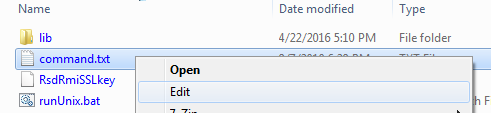
- For Line #1 for
svpip, editxxx.xxx.xxx.xxto equal your service processor (SVP) IP address. Be careful not to add or remove any extra spaces!
- For VSP Gx00 models and (VSP) E Series, there is an extra field with the serial number of the sub system required; therefore Line #2 will be as follows: replace VSP Gx00 or (VSP) E Series Serial Number with xxxxxx on Line #2 and Line # 3 will contain user login and password similar to step 10.

- For other subsystems, there is NO system serial number needed; therefore for Line #2, for
login, replaceuserid "password"with Storage Navigator credentials (do not modify the spacing, and keep the password within the quotations "").- Best Practice: Use an exclusive user-created Storage Navigator account with 'Support Personnel' role.
- In a pinch, you can use the default Storage Navigator logins. This is not best practice though.

- If the
longrangestanza is commented out the export will attempt to collect 90 days of 15 minute-interval summary data:
Default (not commented out):
Commented out:
- Optional: If the
shortrangecollection is too much, you may need to comment out the 24-hour collection and only perform an 8-hour collection.
Default (24-hour collection):
8-hourshortrange:
- Save Command.txt.
- Double-click runWin.Bat within
...\ExportTool\win_nt\exportdirectory.- Do not run as administrator; the export tool will output a java error if you do.
- For Gxx0 series systems running Hitachi-supplied SVPs with OpenJDK installed, use runWinOnSvp.bat instead - as there is no default classpath variable to Java.exe
- Do not touch the command prompt window until you see "
Export Tool End" and "Press any key to continue..." output.
- Archive the "
out" folder in the *.zip format, and upload it to https://tuf.hitachivantara.com/upload using your service request (SR) number.- To assist our automated processing services; only store one performance data collection per zip file and try to include the words "out" or "export" in the filename for identification, e.g. "
Out_Secondary_12345_Friday.zip". - It is also helpful to edit the Description field of the upload page, include the system serial number and date and time of the collection and other pertinent details. Contact Global Support after the upload is complete.

- To assist our automated processing services; only store one performance data collection per zip file and try to include the words "out" or "export" in the filename for identification, e.g. "
Additional Notes
- For the best user experience, log in to view this article. Users who do not log in will find some links do not work.
- Collection times vary based on system configuration and current IO workload. Expect a minimum of one hour of waiting for the collection to complete.
- If changes are made to Performance Monitor, then short range data collection is limited to the time since the change. Modify the short range period to reflect the new time period. For example, if you added a control unit (CU) four hours ago, change short range to four or less hours.
- "Shortrange" & "range" data collection cannot exceed 24 hours.
- The VSP Gx00 and VSP Fx00 series does not store longrange data.
-
If any errors happen during collection, archive "log" folder within
...\ExportTool\win_nt\export\in the*.zipformat and upload it to https://tuf.hitachivantara.com/uploadthru/upload using your SR number. Contact Global Support after the upload is complete.
- For the VSP G130 G/F350 G/F370 G/F700 G/F900 series and the VSP E Series without an SVP, please see Enterprise - Collect Monitor 2 Performance Data from Systems Without an SVP
- To run the Export Tool on the SVP, please see Performance Data Collection - Modify the Export Tool so That It Can Run in OpenJDK SVP and MPC Environments
Solution Properties
- Keywords
- Perfmon Performance Export Tool Log out.zip SVP Data Collection Windows R800 R900 HM800 HM850 HM900 RAID ravideo raexternalrequest
- Solution ID
- 242403040002920
- Last Modified Date
- 08/27/2026 02:09:53 PM
- Attributes
-
Page Privacy and Permission Assignment
- Page Privacy: Private
- Page Level Permissions: Anonymous; Employee; Service Partner; Customer; Knowledge Author; Knowledge Editor; IT; eServices; Knowledge Draft
- Article: howto
- Pagetype: knowledgearticle
- Taxonomy
- Collections
-
- Guest (Public)
- Views
- 0