Hitachi Remote Ops Agent Log Collection
Summary
Objective
Explain the process for manually sending logs when automatic log transmission fails due to connectivity issues. The article will guide users through two options:
- Manual Upload: Compress and share the Logs directory.
- WebGUI: Use the Agent tab and click Send Logs Report.
Environment
Hitachi Remote Ops Agent supports the following products:
- VSP One Block 20 series
- VSP E series
- VSP G130, G/F350, G/F370, G/F700, G/F900
- VSP One Object
- VSP One Object S Node/HCP S
- VSP 360
 NOTE: This process applies to Hitachi Remote Ops Agent version 1.2 and later
Procedure
Manual Upload
Hitachi Remote Ops Agent logs can be manually collected and compressed. The logs are stored in the directory below:
C:\ProgramData\RemoteOps\TransportDir
This directory can be compressed and uploaded.
WebGUI
The WebGUI can also be used for Hitachi Remote Ops Agent data collection:
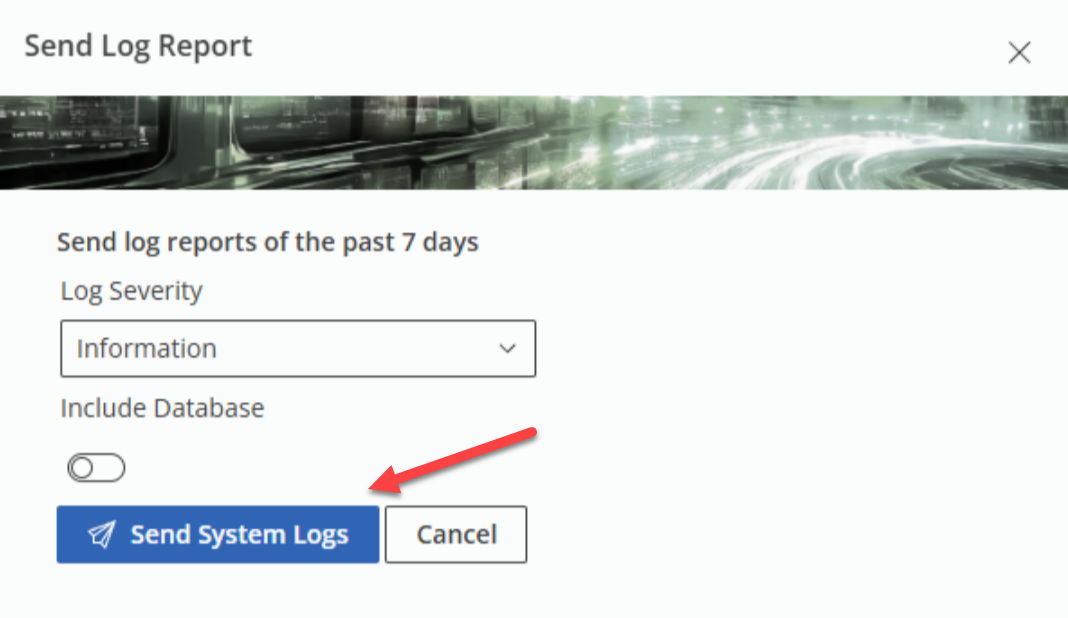
- Navigate to the web GUI and click on Agent and then select Send Logs Report.

b. A window will appear to send log reports of the past 7 days, click on Send System Logs.
Additional Notes
Support for Remote Ops on VSP 360 will be available starting with VSP 360 version 1.2 and later. The release of VSP 360 1.2 is scheduled for the end of January 2026.
Solution Properties
- Keywords
- Remote Ops Agent Logs 1.2 Collection
- Solution ID
- 251209164145973
- Last Modified Date
- 12/09/2025 04:41:46 PM
- Taxonomy
- Collections
-
- Guest (Public)
- Views
- 0