How to Collect HNAS Diagnostic logs from the SMU GUI
Summary
Objective
Obtain the support bundle which contains the Hitachi Network Attached Storage (HNAS) internal logs by using the System Management Unit (SMU) when requested by Hitachi Vantara Global Support Center. The diagnostic information obtained by using this article can be uploaded to the Technical Upload Facility (TUF), using the support case number.
Environment
- Hitachi Network Attached Storage (HNAS) 15.3 and earlier.
Procedure
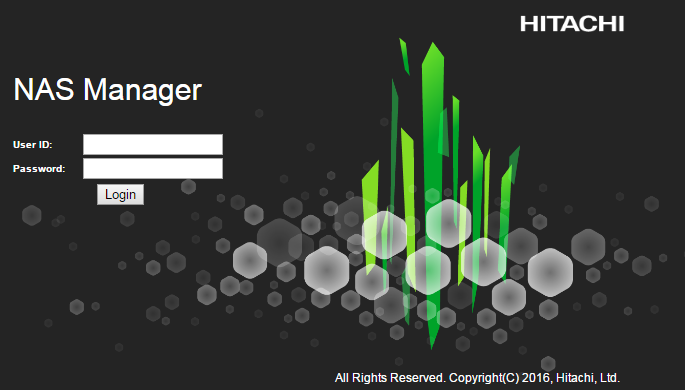
- Login to the System Management Unit (SMU) web server:
2. Select the tab called Status and Monitoring:

3. Scroll to the bottom of the page, select Download Diagnostics:

4. Leave default options selected and click Download once:
 CAUTION: Please do no press the Download button again until after you have been prompted to save the .zip file .

5. Once saved locally, proceed to https://tuf.hitachivantara.com/upload and upload the Diagnostic.zip file to your Service Request.
Solution Properties
- Keywords
- HNAS Diags Diagnostics SMU DataCollection HNASDataCollection LogCollection Logs GUI raexternalrequest
- Solution ID
- 242403050013501
- Last Modified Date
- 08/27/2026 02:04:36 PM
- Attributes
-
Page Privacy and Permission Assignment
- Page Privacy: Private
- Page Level Permissions: Anonymous; Employee; Service Partner; Customer; Knowledge Author; Knowledge Editor; IT; eServices; Knowledge Draft
- Article: howto
- Pagetype: knowledgearticle
- Taxonomy
- Collections
-
- Guest (Public)
- Views
- 0