

Summary
Content
Objective
- If the certificates on the SVP and MPC do not match those on the Maintenance Utility Web Server (GUM), launching the Maintenance Utility on the SVP and MPC will fail. This article explains how to export the certificate from GUM and import it into the SVP, enabling Hitachi Device Manager - Storage Navigator to launch the Maintenance Utility.
- This article also provides guidance for replacing the SVP, as it will lack the custom Maintenance Utility certificates and will not load the Maintenance Utility from Hitachi Device Manager - Storage Navigator.
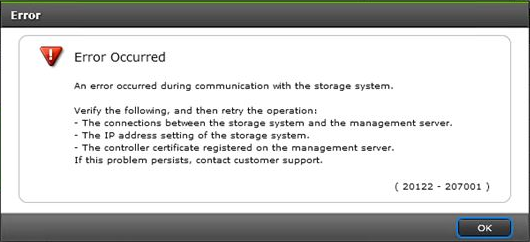
- Resolve Error:
- 20122-207001
- SVP0469E
Environment
- Service Processor (SVP)
- Maintenance PC (MPC)
- GUM Certificate for the Maintenance Utility Web Server
- VSP Gx00 and VSP Fx00 (HM800)
- Virtual Storage Platform Gx00 (VSP Gx00): VSP G200, VSP G400, VSP G600, VSP G800
- Virtual Storage Platform Fx00 (VSP Fx00): VSP F400, VSP F600, VSP F800
- Virtual Storage Platform Nx00 (VSP Nx00): VSP N400, VSP N600, VSP N800
- VSP G130 G/F350 G/F370 G/F700 G/F900 (HM850)
- VSP G130, G350, G370, G700, G900
- VSP F350, F370, F700, F900
Procedure
Checking the Current Maintenance Utility Web Server Certificate
- Load the Maintenance Utility page for CTL1 or CTL2 in a web browser using HTTPS:
- HM800:
https://<ip-or-fqdn-of-ctl>/ - HM850:
https://<ip-or-fqdn-of-ctl>/MaintenanceUtility/
- HM800:
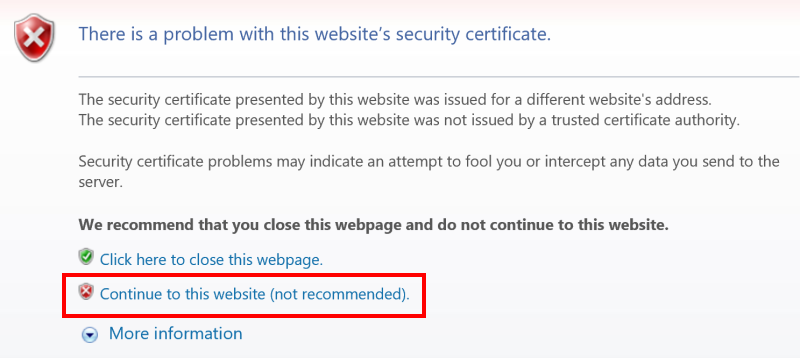
- If applicable, Click Continue to this website (not recommended)
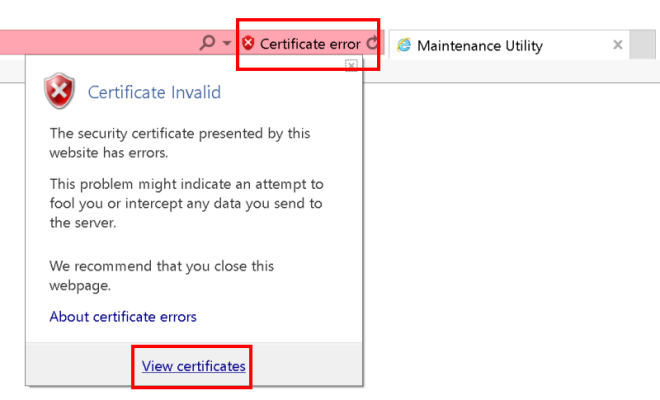
- If applicable, Click Certificate error in the browser URL bar
- Click View certificates
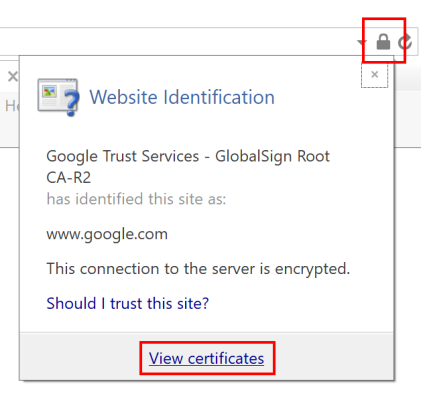
- If there are no certificate errors, Click the closed padlock in the browser URL bar
- Click View certificates
- Click the Details tab
- Validate if the default certificate is installed
 NOTE: The default certificate will have an issuer of
gum@str.hitachi.co.jp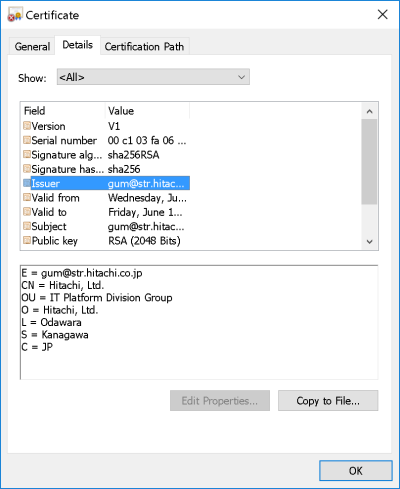
- Go to the next section depending if the certificate is Default or Custom. Do not perform both.
- Default: Reset Maintenance Utility Certificate on the SVP/MPC
- Custom: Export the Maintenance Utility Web Server Certificate and Import it to the SVP/MPC (This is more likely why you are reading this article)
Reset Maintenance Utility Certificate on the SVP/MPC
NOTE: Only perform these steps if the default certificate is installed. To check, see Checking the Current Maintenance Utility Web Server Certificate.
- On the SVP/MPC open Command Prompt as Administrator
- Run the following commands in order
cd /d C:\Mapp\wk\supervisor\mappinisetmappsn2gumsslcrtinit.batmappl7switchgumsslcrtinit.bat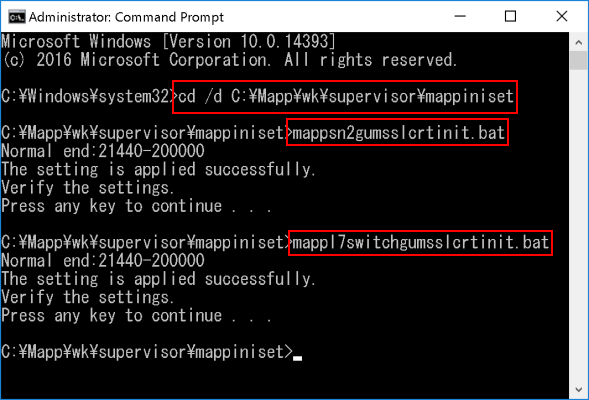
- Reboot the SVP/MPC
- Wait 5-10 minutes
- Launch Maintenance Utility from Hitachi Device Manager - Storage Navigator to validate success
Export the Maintenance Utility Web Server Certificate and Import it to the SVP/MPC
NOTE: Only perform these steps if a custom certificate is installed on the Maintenance Utility. To check, see Checking the Current Maintenance Utility Web Server Certificate
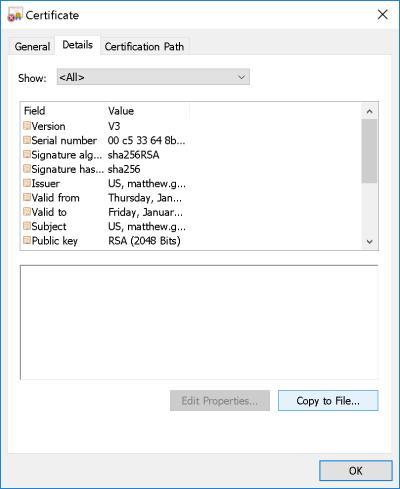
- Click Copy to file... button. If the button Copy to File is disabled run Internet Explorer as Administrator and try again.
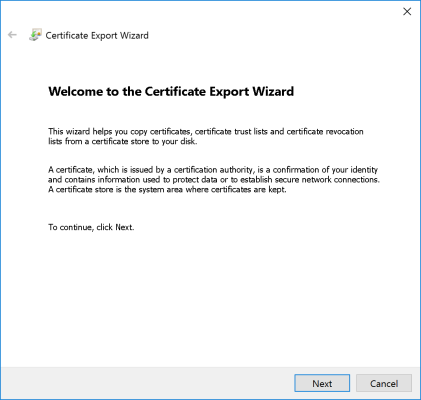
- Click Next
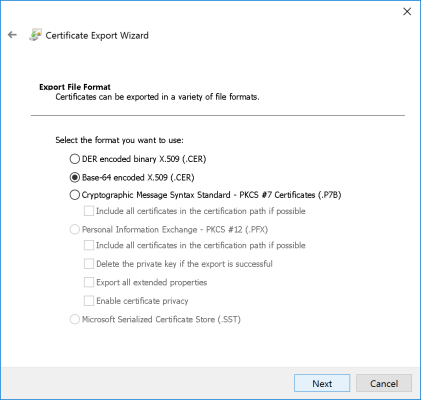
- Click Base-64 encoded X.509 (.CER)
- Click Next
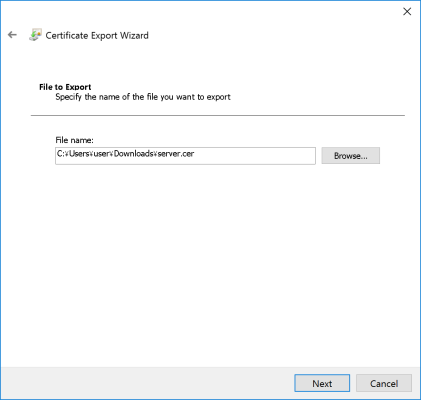
- Click the Browse... button
- Select the desired directory to save
- For this example
server.cerwill be saved inC:\Users\user\Downloads\
- For this example
- Click Next
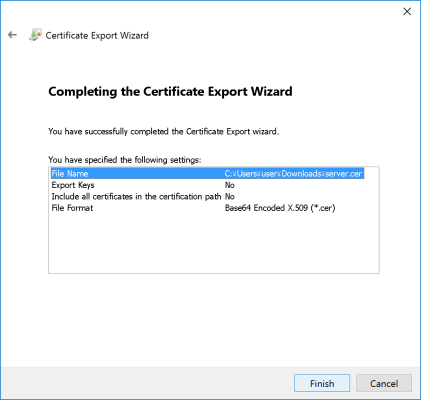
- Review the confirmation screen
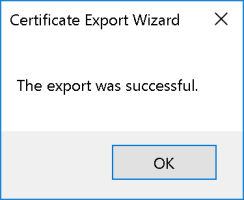
- Click Finish and then OK
- Open Command Prompt as Administrator
- Run the following commands in order
cd /d C:\MAPP\wk\Supervisor\MappIniSet\mappsn2gumsslcrtupdate.bat "<file-directory>\server.cer"mappl7switchgumsslcrtupdate.bat "<file-directory>\server.cer"
- Reboot the SVP/MPC
- Wait 5-10 minutes
- Launch Maintenance Utility from Hitachi Device Manager - Storage Navigator to validate success
Additional Notes
NOTE: .cer and .crt files are essentially the same. Both extensions usually work; if one doesn't, try renaming the file to the other extension and attempt again.
Related Articles:
- How to Reset the Device Manager - Storage Navigator Certificate Back to Default for VSP Gxx0 Storage Arrays
- How to Restore a VSP Gx00 Certificate to Default Settings
- How to Reset the Maintenance Utility Certificate Back to Default for VSP Gxx0 Storage Arrays
- How to Configure or Modify SSL Communication Between Gx00/Fx00 SVP and Storage Array
- Setting up a secure (SSL) connection
- How to Harden Block Storage for Network Security Scans - Index Page
- How to Upload a Customer Certificate to Hitachi Block Storage - Index Page
CXOne Metadata
Tags: article:howto, HM800, GUM, Maintenance Utility, pagetype:knowledgearticle, SSL, VSP Gx00 and VSP Fx00, certificate, crt, Cert, HM850, VSP G130 G/F350 G/F370 G/F700 G/F900, 20122-207001, SVP0469E, 207001, cer, 20122
Legacy CXOne URL: https://knowledge.hitachivantara.com/Knowledge/Storage/How_to_Import_Custom_Maintenance_Utility_Certificates_into_the_SVP_or_MPC_so_That_the_Maintenance_Utility_Can_Be_Launched_from_Storage_Navigator
Page ID: 122127