How to Change SVP Remote User Id Password for Remote Ops Monitor and VSP G/F/Exx0
Content
Objective
Change the SVP hitrack user and passwords for Hitachi Remote Ops Monitor Agent and VSP G130 G/F350 G/F370 G/F700 G/F900.
Environment
- Hitachi Remote Ops Monitor Agent (HROMA) (Formerly known as Hi-Track Monitor)
- Version 8.3 or later
- Service Processor (SVP)
- Maintenance Utility / GUM
- Virtual Storage Platform G130 G/F350 G/F370 G/F700 G/F900 (HM850)
- Virtual Storage Platform (VSP) E Series (VSP E590, VSP E790, VSP E990, VSP E1090) (HM900)
Procedure
Storage Username and Password Requirements
(For Maintenance Utility/GUM and SVP)
Per the Storage System Administrator Guide:
| Item | Length in Characters | Characters that can be used |
|---|---|---|
| Username | 1-63 |
|
| Password | 6-63 |
|
Background: These password requirements are specific to API communication with the SVP and Maintenance Utility (GUM). Regular Storage Navigator and Maintenance Utility GUI requirements are not as limited to which symbols can be used.
Changing Password on the SVP
- Login to the SVP using Windows RDP
- Open an Administrative Command Line Prompt (CMD)
- Input the following command to change the password for the "hitrack" user account
%SVP_HOME%\OSS\apache\bin\htpasswd -c %SVP_HOME%\wk\supervisor\comweb\san\cnf\.htpasswdfwup hitrack- Note: You may specify a custom username by simply replacing "hitrack" with the custom username at the end of the command above. Doing so, will delete the "hitrack" user account. You may only have one active account.
- Input the new desired password (twice) when prompted

- Confirm you can login with these credentials by opening a web browser on the server where HROMA is installed and navigating to:
https://<SVP-IP Address>/cgi-bin/fwupdate/update.cgi- Note: replace "<SVP-IP Address>" with the IP address of the SVP.
- After logging in, you will receive the following response upon successful login. Now continue with updating the credentials on HROMA below.
function=&returncode=0x00000003
- If you do not receive a login prompt, there is likely an issue with network communication over port 443 between the SVP and your HROMA instance.
- If you do not have access to a GUI web browser you can use a CLI browser such as curl:
-
curl https://<SVP-IP Address>/cgi-bin/fwupdate/update.cgi -k -u user:password
-
Updating Credentials on Hitachi Remote Ops Monitor Agent (HROMA)
Prerequisite: Remote Ops (Hi-Track) Monitor 8.3 or later must be installed on a non-SVP server. It is also recommended Hitachi Remote Ops Monitor Agent is not installed on an LDEV from the array it is supposed to monitor.
- Open Hitachi Remote Ops Monitor Agent in a web browser
- http://xxx.xxx.xxx.xxx:6696
- Log in as admin
- The default password is hds
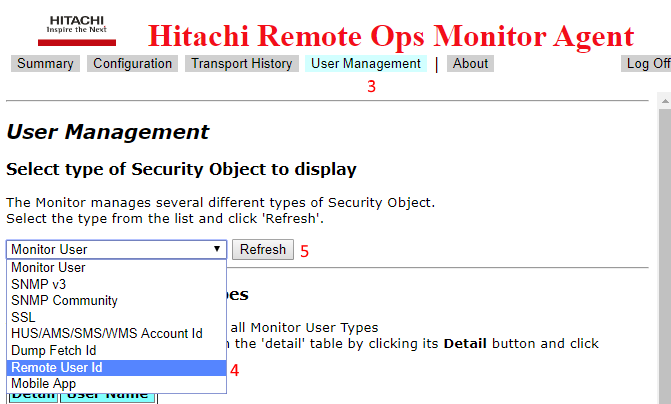
- Click the User Management button on the top of the screen
- From the first drop-down menu, change Monitor User to Remote User ID
- Click the first Refresh button next to the Remote User ID
- Wait for the page to refresh
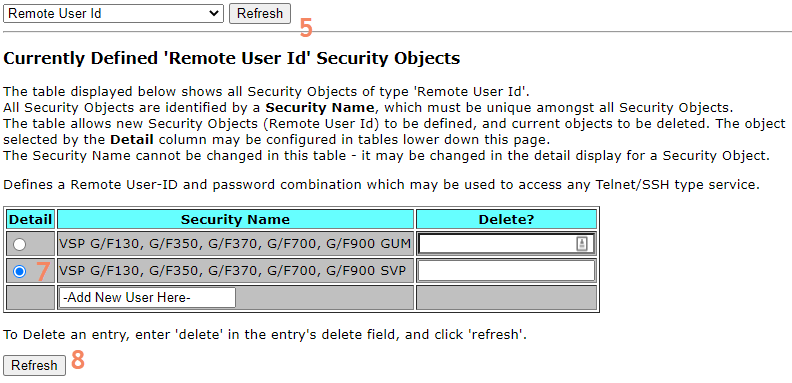
- Select the appropriate radio button in the Detail column for the account to be modified
- Select VSP G/F130, G/F350, G/F370, G/F700, G/F900 SVP to modify the hitrack user account
- Select VSP G/F130, G/F350, G/F370, G/F700, G/F900 SVP to modify the hitrack user account
- Click the second Refresh button in the middle of the page
- Wait for the page to refresh
- Type the new Remote Password in twice
- These credentials must match the credentials specified earlier on the SVP
- These credentials must match the credentials specified earlier on the SVP
- Optional/Recommended: It is strongly recommended the Security Name be changed to SerialNumber-SVP or SerialNumber-GUM
- If the Security Name is not unique, when the userid or password is changed, it will change it for ALL the items with the same security name.
- If the Security Name is not unique, when the userid or password is changed, it will change it for ALL the items with the same security name.
- Click the third Refresh button on the bottom of the page (numbered 11)

Additional Notes
- Store passwords according to your organization's security policies.
- The password for the default hitrack user account must match the User ID username and password configured on the SVP.
- Both accounts default to username hitrack and password raid-hitrack
- For initial configuration between Hitachi Remote Ops Monitor Agent and VSP G130 G/F350 G/F370 G/F700 G/F900 see How to Configure Remote Ops Monitor and VSP G130 G/F350 G/F370 G/F700 G/F900 E990 E790 E590 E1090.
- For initial Hitachi Remote Ops Monitor Agent installation/configuration instructions see Remote Ops (Hi-Track) Monitor Installation Guide.
Solution Properties
- Keywords
- https://knowledge.hitachivantara.com/Knowledge/Support_Tools/Remote_Ops/How_to_Change_SVP_Remote_User_Id_Password_for_Remote_Ops_Monitor_and_VSP_GFExx0
- Solution ID
- 240403060120376
- Last Modified Date
- 09/10/2024 08:07:12 PM
- Attributes
-
Page Privacy and Permission Assignment
- Page Privacy: Private
- Page Level Permissions: Employee; Service Partner; Customer; Knowledge Author; Knowledge Editor; IT; eServices; Knowledge Draft
- Article: howto
- Pagetype: knowledgearticle
- Taxonomy
- Collections
-
- Customer
- Views
- 0